FAQs




Digital Ticketing Tutorial
Season Membership FAQs
Mobile / Digital Ticketing
How do I access and save my digital season tickets?
TO ACCESS YOUR TICKETS
Using your cellphone, scroll to the top of this screen and open the menu by clicking the three-bar icon on mobile.
-
From this menu - Click BROADWAY
-
Click on the MEMBER LOGIN button
-
Tap on the person icon on the upper right corner.
-
From this screen – enter your email address and password.
-
Once you are logged in, select the three-bar icon in the top left of the screen.
-
Tap on ‘Manage Tickets’ then scroll to your desired show.
-
You can also reference Digital Ticketing How-To Video at the top of this page for further assistance.
-
TO DOWNLOAD YOUR TICKETS
-
Following the instruction above, log into your American Theatre Guild account and go to 'Manage Tickets', then scroll to your desire show.
-
Tap on your seats under ‘My Tickets’ at the bottom of the screen.
-
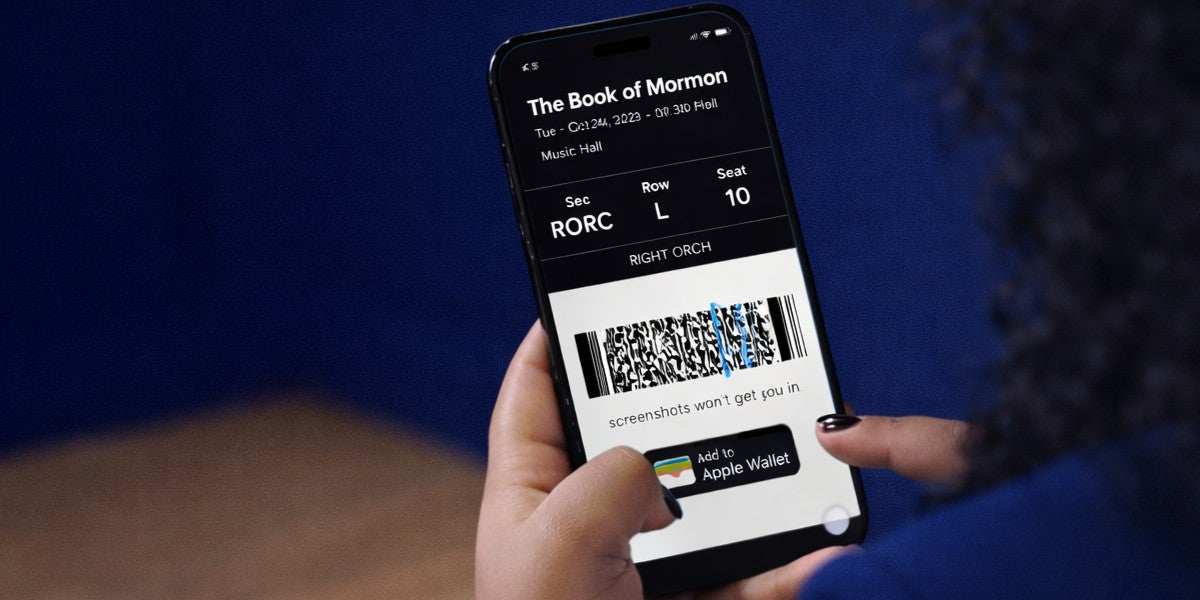
Tap ‘Add to [digital wallet]’ - this must be done for each ticket you wish to appear in your phone’s digital wallet.
-
You can also reference Digital Ticketing How-To Video at the top of this page for further assistance.
-
If you have problems viewing your tickets please call the Season Member Box Office at 816-421-7500 for assistance or to utilize SMS text messaged tickets right to your phone. Please note our Season Member Box Office is open M-F 10am-4pm CT, if you need assistance with your tickets on the night of the show, please go to the Box Office at the theater.
Can I print my ticket or use a screenshot?
No, American Theatre Guild ticket do not have a 'Print From Home' option and screenshot tickets cannot be scanned. Please download your tickets via your American Theatre Guild account (instructions under 'How do I access and save my digital season tickets?' or reference the Digital Ticketing How-To Tutorial)
Can I show my tickets on a tablet?
No, the screen is too large and the scanners are unable to scan those barcodes.
I go with friends/family members, how do I get their tickets to them and how do they claim their tickets?
TRANSFERRING TICKETS
-
From the top of this page - Click MEMBER LOGIN
-
Scroll to the top of the screen and select the person icon on the right.
-
From this screen – enter your email address and password.
-
Select ‘Manage Tickets’ then select your desired show.
-
Select ‘Transfer’ PLEASE NOTE: Seats can only be transferred once. Please confirm you are transferring to the person who will be using the tickets.
-
Complete the information to send tickets - you must have the email address of the person you are sending tickets. They will receive an email that you’ve transferred tickets to them.
-
The recipient must follow that link and accept the transferred tickets. They will need to create an account to receive the tickets but do not need to purchase Season seats to create an account.
-
The recipient* is now the owner of these seats and can download them to their Digital Wallet on their phone
(*Please recommend downloading them to their wallet prior to the performance so they don’t have difficulty entering the theater.) -
Tickets you wish to transfer must be accepted no later than 48 hours prior to the scheduled performance.
ACCEPTING TRANSFERRED TICKETS
-
Once the season member has successfully completed the transferring process, the recipient will receive an email letting them know that tickets have been sent to them.
-
Recipients need to click the link provided in the email to accept the transfer. They will be redirected to the American Theatre Guild’s account manager.
-
Recipients must create an American Theatre Guild account using the email that they received their ticket transfer on with a password of their choosing, or tickets will not successfully transfer.
-
Once the recipient creates an account, they will be able to access their transferred tickets via “Manage Tickets” and download them.
-
To download tickets, please reference the Digital Ticketing How-To Video at the top of this page.
Do I need to present all the tickets at once?
Yes. All patrons should enter at the same time using the tickets displayed via your American Theatre Guild account on Ticketmaster, Apple Wallet, or Google Wallet on your mobile device. If members of your party are arriving separately, then you will need to transfer the ticket they will be using for entry to them via your American Theatre Guild account.
PLEASE NOTE: Recipients must accept the transfer as soon as they receive the email notification or the invitation to accept the tickets may expire. The recipient of the tickets will need to create a American Theatre Guild account to receive the tickets (they do not need to purchase Season seats to create an account).
If I have digital tickets, can I still get them printed at the Box Office?
No. Tickets retrieved on your mobile device logged into your American Theatre Guild account on Ticketmaster will now be considered printed. The tickets will not be available for pickup at the box office. You should present the ticket displayed in your American Theatre Guild Account on your mobile device to be scanned for entry at the theatre.
Why can’t I see my tickets in my account?
If you are logged into your American Theatre Guild account on Ticketmaster and do not see your tickets, please contact us via e-mail or via phone at 816-421-7500 in advance of your performance. If you are experiencing difficulties at the time of your performance, please stop by the Box office at the venue for assistance.
What if my digital ticket isn’t on my phone at the theatre?
Please visit the Box Office and they will assist you.
PURCHASING
How can I purchase accessible seating?
For information about accessible seating or other special accommodations visit the venue website. For additional information, please contact our friendly Patron Services Representatives via e-mail or by calling 816.421.7500 anytime Monday-Friday, 10am-4pm CT.
All American SIgn Language Requests must be submitted two weeks prior to your performance.
Do I have to pay for the entire season at once?
No. Another benefit to being a season member is that you can elect to pay for your season membership with easy payments. Renew/join online or by phone before the deadline and request the "Payment Plan" option as you send in the appropriate payment.
Can my family or friends use my priority ticket benefits?
Yes, you can share this benefit with friends and family, however, the request must come from the account holder or designated person(s) on the account given permission by the account holder and notated in the Season Member's account.
Purchasing additional tickets online.
-
To buy tickets to the season add-on or additional tickets to a season show, first, log into your American Theatre Guild account and then click ‘Buy Tickets’.
-
Click ‘Select’ for the event you want to purchase. A seating chart of the theatre will appear.
-
At top left, you can add (+) or subtract (-) the number of seats you want to purchase.
-
When you highlight a section of the theater, the available seats will appear.
-
Select the seat(s) you want by clicking on them - this will put them in your shopping cart.
-
Hit ‘Continue’ and Proceed to Checkout.
-
If you want additional tickets, click ‘Continue Shopping’.
-
Confirm your contact information, make changes if needed. Click ‘Continue’.
-
Select Payment method and enter card info. Note: If your account has a credit, you can choose to apply it towards payment amount.
-
Accept the Terms and Conditions and click ‘Submit Order’.
-
You will receive an email confirmation. Please be sure to confirm your order details.
What is the Automatic Renewal Program?
Season Members who join the Automatic Charge Renewal Program receive priority access and additional benefits, including:
- Your seats are GUARANTEED for all season shows.
- First access to exclusive ADD ON SHOWS and exchanges.
- Payment Plan or Pay in Full option.
- Automatic renewal is easy and secure.
NOTHING TO LOSE!
-
Peace of mind knowing your seats are secure year after year, all Subscribers will be automatically renewed each year. If you’re not interested in the upcoming season, you’ll be able to cancel up to 30 days after your first charge.
-
If you do not wish to be part of our Auto Renewal Program for the next renewal year, you will need to opt-out. Doing so will opt you out for all subsequent seasons.
-
If you have been opted out of Automatic Renewal, you can always opt back in for the next season by calling the Season Member Office or emailing patronservicesrep@americantheatreguild.org.
-
As a Subscriber, you will be automatically enrolled in Automatic Renewal every subsequent renewal year.
-
If you change your mind once the season is announced, contact us within 30 days of being charged and we’ll refund you in full and cancel your seats.
HOW DOES IT WORK?
-
Once a Subscriber is enrolled and opted-in Automatic Renewal, their season seats will be renewed for each upcoming Season.
-
When the season is announced, we’ll charge your card (according to your selected payment plan or full payment) 7 days after the announcement. If you change your mind once the season is announced, contact us within 30 days of the 1st charge and we will issue a full refund.
-
Subscribers that opt-out prior to the charge date or payment is declined, season seats will be put on reserve until the renewal deadline.
-
As an Automatic Renewal Subscriber, you will receive a Save the Date email prior to the season announcement, letting you know when the season will be announced, confirming what card, and payment plan option you have designated for renewal.
SIX (6) PART PAYMENT PLAN DETAILS
When using our 6-part, no fee, no interest payment plan, your card will be charged based on the information below.
-
Automatic Renewal Charge Date: Seven (7) days after the season is announced, the card on file will be charged 1/6th of the total amount due. An email notification will be sent to login and view your total due and update your credit card on file.
-
May 15, 2026: The second 1/6th payment will be charged, and email notification will be sent.
-
15th of each subsequent month: The remaining 4 payments will be made on the 15th of each month from June – September, 2026.
OPT-OUT DEADLINE
The deadline to opt-out of Automatic Renewal for the 2026-27 Season is Sunday, February 1, 2026.
HOW TO OPT-OUT
There are two ways to opt-out of Automatic Renewal for the upcoming season:
-
Call into our Season Member Office at 816.421.7500 Monday-Friday 10am-4pm
MANAGING TICKETS
Changing your season membership seats.
Only purchase of your previous seats are available at the time of Season Renewals. Once we have finalized the details of all the returning members and the season membership buying window has closed, then you will be notified with an “online upgrade time” where you can login to your account and choose from available seating. Keep in mind, seating options from one year to the next all depend on current season members renewing. If every patron in front of you renews, you will not have the opportunity to move forward. Renewals in the theaters’ premium areas are very high, so it is more difficult to make changes in those areas.
Ticket exchanges for scheduling conflicts.
Season Members can exchange tickets for another performance of the same production. Please note - while we make every effort to place you into comparable seating for exchanges, this cannot be guaranteed.
TWO WAYS TO EXCHANGE*:
-
Conveniently online by logging into your American Theatre Guild account (step by step instructions under ‘How do I exchange my seats online’).
-
By calling us at 816-421-7500 anytime Monday-Friday, 10am-4pm CST.
*Exchanges must be made no later than 72 hours in advance of the show and are subject to availability at the time of the exchange. Some restrictions may apply. Touring companies may limit the number of exchanges. No refunds if you exchange into a less expensive performance or section. The difference in price must be paid if exchanging into a higher priced performance or seating location. Tickets are subject to additional fees. A $5 per ticket fee applies for all exchange transactions. Upgrade charges may apply. Additional ticket limits may vary by production. Exchange policies subject to contractual terms with touring companies
Exchanging your seats online.
-
To exchange the night of a season show, log into your American Theatre Guild account and then click ‘Manage Tickets’.
-
Select the event and the seats you want to exchange. This will pull up a list of the performances you can exchange.
-
Select the event you want to exchange into.
-
A seating chart for that event will appear. Highlight your desired sections and the available seats will appear.
-
Select the seat(s) you want by clicking on them.
-
You will get a summary of your old seats and your new seats. Confirm this is what you want to do.
-
Accept the Terms and Conditions and click ‘Submit’.
-
You will receive an email confirmation. Please be sure to confirm your order details.
EXCHANGES: Exchanges must be made at least 72 hours in advance of the show and are subject to availability at the time of the exchange. Some restrictions may apply. Touring companies may limit the number of exchanges. No refunds if you exchange into a less expensive performance or section. The difference in price must be paid if exchanging into a higher priced performance or seating location. Tickets are subject to additional fees. A $5 per ticket fee applies for all exchange transactions. Upgrade charges may apply.
How do I purchase additional tickets online?
-
To buy tickets to the season add-on or additional tickets to a season show, first, log into your American Theatre Guild account and then click ‘Buy Tickets’.
-
Click ‘Select’ for the event you want to purchase. A seating chart of the theatre will appear.
-
At top left, you can add (+) or subtract (-) the number of seats you want to purchase.
-
When you highlight a section of the theater, the available seats will appear.
-
Select the seat(s) you want by clicking on them - this will put them in your shopping cart.
-
Hit ‘Continue’ and Proceed to Checkout.
-
If you want additional tickets, click ‘Continue Shopping’.
-
Confirm your contact information, make changes if needed. Click ‘Continue’.
-
Select Payment method and enter card info. Note: If your account has a credit, you can choose to apply it towards payment amount.
-
Accept the Terms and Conditions and click ‘Submit Order’.
-
You will receive an email confirmation. Please be sure to confirm your order details.
I have already seen one of the shows in my season. What are my options if I don't want to see it again?
Although we are unable to offer refunds on shows previously seen, we may be able to help. Please contact us through our online contact form with any questions or call American Theatre Guild at 816-421-7500 anytime Monday-Friday, 10am-4pm CT.
ACCOUNT MANAGER
How to change your address.
To update any and all season member account information, please contact the American Theatre Guild office by phone at 816.421.7500 anytime Monday-Friday, 10am-4pm CST or by email at patronservicesrep@americantheatreguild.org.
I can no longer attend the series and would like to give my account to a friend. Is that possible?
Yes, it is possible to give your seats to a friend. Contact the American Theatre Guild.
Please note that the CURRENT ACCOUNT HOLDER must call in and approve the transfer as well as provide the recipient’s complete contact information. Complete payment or partial payment on a payment plan will be due before the renewal deadline.
Season ticket cancellations and refunds.
Please contact us by phone at 816.421.7500 anytime Monday-Friday, 10am-4pm CST or by email at patronservicesrep@americantheatreguild.org to inquire about your refund options.
I am unable to attend this year, but would like to retain my seats for the following year. What can I do?
We are unable to hold your seats without payment in full. If accounts are not paid or partially paid on a payment plan by the renewal deadline, seats are released. If you choose to release your seats and then return in a future season, please note that your account would be considered as a new member and seated with the best available locations at that time.
Creating individual accounts from shared memberships.
Splitting season accounts can be done if the CURRENT ACCOUNT HOLDER makes this request to our office BEFORE tickets are delivered. Call our office at 816-421-7500 anytime Monday-Friday, 10am-4pm CT and any of our staff will be happy to assist you. Please note that complete contact information on the parties’ involved need to be included with their payment in full.
Season Subscription Terms and Conditions
Season Subscriptions, and all Tickets and Additional Tickets purchased under any Subscription, are subject to the American Theatre Guild Standard Season Subscription Terms and Conditions posted on our website at https://www.americantheatreguild.com/terms-of-use. By purchasing a Season Subscription, you agree to such Terms and Conditions. Prices, shows, artists, dates and times are subject to change at any time without notice.
INDIVIDUAL TICKET BUYER FAQS
MOBILE/DIGITAL TICKETING
Accessing Mobile/Digital Tickets.
Connectivity may be intermittent at the theatre; we encourage you to view your tickets on your mobile device and add them to your Digital Wallet (Apple Wallet or Google Wallet for Androids) before heading to the show.
Visit the Ticketmaster website for more information regarding your mobile/digital tickets.
Is printing or screenshotting digital tickets accepted?
No, Broadway in Peoria tickets do not have a 'Print From Home' option and screenshot tickets cannot be scanned. Please download your tickets via your Ticketmaster account (instructions can be found on the Ticketmaster website)
Can I show my tickets on a tablet?
No, the screen is too large and the scanners are unable to scan those barcodes.
What if my digital ticket isn’t on my phone at the theatre?
Please visit the Box Office and they will assist you.
PURCHASING
Accessible Seating.
Accessible seating can be purchased online, by contacting our friendly Patron Services Representatives, or by calling 816.421.7500 anytime Monday-Friday, 10am-4pm CT.
All American SIgn Language Requests must be submitted two weeks prior to your performance.
Avoiding third-party ticket purchases.
The official ticket seller for the Broadway in Peoria is Ticketmaster. All other websites selling tickets are being sold through a third party for inflated prices, and in many cases, your ticket purchase cannot be guaranteed. When purchasing tickets, look at the address bar of your browser to confirm it indicated Ticketmaster.com.
Getting help with your ticket purchase.
For any questions regarding an individual ticket purchase, contact us.
TICKET RESALE FAQS
What is Ticket Resale?
Reselling your tickets to another ticket buyer for a specific value. Once your tickets are sold to another buyer, they are no longer your tickets and they are transferred to a new account.
Options if you can’t attend a performance.
-
Exchange - As a Season Member you can exchange your ticket(s) to another performance.
-
Donate - Donate your ticket(s) to Staging the Future and receive a tax credit letter for the value of your tickets. Call our Season Member Services 816-421-7500 to donate to Staging the Future.
-
VetTix- Donate your ticket(s) to VetTix - available on your online Account, select the show and click on “Donate” to donate your seats to a VetTix member.
-
Resale - Resell your tickets on your online Account as a Season Member.
Reselling Tickets Safely.
As a Season Member or Ticketmaster buyer, you can safely and securely sell your tickets through your Account Manager (the Ticketmaster app if you are not a Season Member). Click on the tickets and select “SELL”, you can then list your tickets for resale. You will be notified when they have sold and contacted for payout from Ticketmaster. ATGuild does not payout resold tickets.
When tickets can be listed for resale.
Tickets to the Broadway Series shows can be posted for resale once the general public on sale has begun.
Can I resell tickets that have been transferred?
No, tickets that have been transferred to you from another account cannot be posted for resale.
Information needed for ticket resale payments.
Before you receive payout for selling on Ticketmaster, you’ll need to complete the form from Ticketmaster. Please provide your Name, Address, Phone Number, and Taxpayer Identification Number (this can be a Social Security Number (SSN), Individual Taxpayer Identification Number (ITIN), or Employer Identification Number (EIN)). To avoid delays in processing your payout, it’s important to make sure that the information you provide on the form matches what you use for tax purposes.
What if my tickets don't resell?
As a Season Member, your tickets will remain available for purchase until the event’s resale deadline expires, which varies by event. Any tickets that have not sold will be placed back into your account for your use. Unsold tickets aren’t eligible for refunds.
Is ticket resale legal?
Yes, ticket resale is legal. American Theatre Guild does not support the reselling of Tickets in excess of the face value through any means other than through authorized reselling programs of ATGuild. Doing so will constitute a breach of the Subscription Terms and Conditions and Subscribers who violate this term may be subject to revocation of their Subscription and Tickets. ATGuild, Producer, Presenter, or the theater are not responsible for counterfeit tickets that Subscribers or others may purchase from unauthorized third parties reselling Tickets. If You transfer or sell a Ticket, You are solely responsible for communicating the Subscription Terms and Conditions and Local Terms that apply to the use of that Ticket to the recipient, as well as any updates, including but not limited to information about seating and date changes, performance cancellations, and the theater’s rules, including health protocols, and security requirements. Other than admission to the performance, all other benefits associated with a resold Ticket are non-transferable.
GROUP TICKETS FAQS
How many tickets qualify as a group?
Group ticketing is available for patrons purchasing 10 or more tickets to an individual event.
How can I purchase accessible seating?
Accessible seating can be requested when submitting your Group Ticket Request Form. Please note any accommodation requests under the ADDITIONAL INFO OR REQUESTS section.
All American SIgn Language Requests must be submitted two weeks prior to your performance.
Are there any benefits to purchasing group tickets?
Yes! Visit our Group Tickets Page to view group ticket benefits.
How can I confirm that I am not buying tickets from a third party site?
The official ticket seller for the American Theatre Guild is Ticketmaster. All other websites selling tickets are being sold through a third party for inflated prices, and in many cases, your ticket purchase cannot be guaranteed. When purchasing tickets, look at the address bar of your browser to confirm it indicated Ticketmaster.com.
I would like to purchase a large number of ticket for my company event or charitable organization? How do I do that?
Parties of 10 or more for an individual show can be purchased through our group sales representative; please fill out our Group Ticket Request Form to request group tickets.
PRIVACY POLICY FAQS
Learn more about our Privacy Policy.
Review our Privacy Policy.